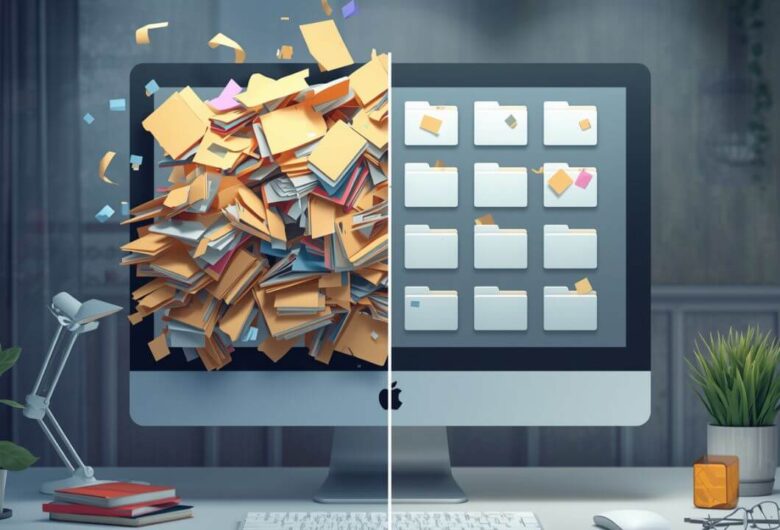
Digital organization should make life easier.
But sometimes, trying to get organized creates more confusion.
You may create too many folders.
You may delete files too quickly.
You may save documents in several cloud accounts.
You may name files in a way that only makes sense today.
You may assume something is backed up when it is only synced.
These mistakes are common.
They do not mean you are bad at technology.
They usually happen because digital life grows faster than our habits.
This guide explains the most common digital organization mistakes to avoid and what to do instead.
The goal is not perfection.
The goal is a calmer, simpler system you can keep using.
Mistake 1: Trying to Organize Everything at Once
When digital clutter feels overwhelming, it is tempting to fix everything in one big session.
That usually means trying to clean your desktop, Downloads folder, Google Drive, photos, email, bookmarks, notes, and phone storage all at the same time.
This often leads to frustration.
You may start strong, get tired, and stop halfway.
Then your files are partly moved, partly renamed, and harder to understand than before.
What to do instead
Choose one small area.
For example:
Clean only your desktop.
Review only this month’s Downloads.
Organize one year of family photos.
Create one folder for important documents.
Rename only your most important files.
This matters because digital organization works better in small, repeatable steps.
A 20-minute cleanup you finish is better than a full-day project you avoid.
Mistake 2: Starting by Deleting Files
Deleting files can feel like progress.
But deleting first can be risky.
You may not know what a file is.
You may delete something connected to taxes, school, work, family photos, or an old project.
You may feel stressed and stop the cleanup completely.
What to do instead
Organize before deleting.
Create folders such as:
Important Files
To Sort
Archive
Maybe Delete Later
Move files into safer places first.
Delete only when you are confident.
This matters because reducing clutter is not the same as removing everything.
Sometimes the safer move is to get files out of the way without deleting them yet.
Mistake 3: Making Too Many Folders
A detailed folder system may look organized at first.
But too many folders can become confusing.
For example:
Money > Bills > Utilities > Electricity > Paid > 2026 > PDF > Final
This may be too much for everyday use.
If saving a file requires too many decisions, you may stop using the system.
What to do instead
Start with broad folders.
A simple beginner structure could be:
- Home
- Money
- Health
- School or Work
- Photos
- Receipts
- Travel
- Archive
Add subfolders only when a folder becomes too crowded.
This matters because a folder system should make decisions easier, not harder.
Simple systems last longer.
Mistake 4: Using Vague Folder Names
Folders named Stuff, Random, New Folder, Important, or Files may seem harmless.
But they do not help much later.
A folder called Important can quickly become a mix of tax forms, photos, receipts, school files, and old downloads.
Then it becomes hard to know what belongs there.
What to do instead
Use names that describe the purpose of the folder.
Better examples:
Tax Documents 2026
Home Insurance
Family Photos 2025
Receipts and Warranties
School Forms
Old Laptop Archive
This matters because folder names are instructions for your future self.
A clear folder name makes the next file easier to place.
Mistake 5: Naming Files Too Vaguely
Files with names like scan001.pdf, document.pdf, final-final.pdf, and download.pdf are hard to find later.
You may remember what the file was, but not what it was called.
What to do instead
Use a simple naming pattern:
Date + Topic + Document Type
Examples:
2026-04-12 Laptop Receipt.pdf
2026 Rent Agreement.pdf
2026 Health Insurance Card.pdf
2026 Tax Documents Checklist.pdf
2026 School Permission Form.pdf
This matters because search works better when file names include useful words.
You do not need to rename every old file today.
Start with new important files from now on.
Mistake 6: Keeping Everything on the Desktop
The desktop is convenient.
That is why it becomes messy.
A few files become twenty.
Twenty become one hundred.
Soon, the desktop becomes a storage area instead of a workspace.
What to do instead
Use the desktop only for temporary items or active work.
Create a folder called:
Desktop Review
Move old desktop items into it.
Then sort obvious files into real folders.
Examples:
A receipt goes to Receipts.
A lease goes to Home.
A work file goes to School or Work.
An unclear old file goes to Archive.
This matters because a clear desktop makes your computer feel calmer quickly.
It also reduces the chance of losing important files in visual clutter.
Mistake 7: Letting Downloads Become Permanent Storage
The Downloads folder is meant to be temporary.
But many people use it as a filing cabinet without meaning to.
It may contain receipts, forms, photos, software installers, statements, and duplicate files.
What to do instead
Review Downloads regularly.
Move important files into real folders.
Examples:
A bank statement goes to Money.
A school form goes to School or Work.
A travel confirmation goes to Travel.
A home repair invoice goes to Home or Receipts.
Delete only obvious temporary files, such as old installers or duplicate downloads.
This matters because important files are easy to forget when they stay in Downloads.
Mistake 8: Using Too Many Cloud Storage Services
Google Drive, Dropbox, OneDrive, and iCloud can all be helpful.
But using all of them without a plan can make files harder to find.
You may not remember whether a document is in Google Drive, Dropbox, your laptop, or an email attachment.
What to do instead
Choose one main cloud storage service for personal files.
Use others only for specific reasons.
Example:
Use Google Drive as your main personal file home.
Use Dropbox only for one shared family folder.
Use OneDrive only for Microsoft Office files.
This matters because digital organization depends on knowing where things live.
One main home is easier than five half-used homes.
Mistake 9: Confusing Sync with Backup
This is one of the most important mistakes.
Cloud sync and backup are related, but not always the same.
Sync means files match across devices.
If you delete a synced file from one place, the deletion may appear everywhere.
Backup should help you recover if something goes wrong.
What to do instead
Use cloud storage, but also keep a separate backup for important files.
A simple setup:
Files on your computer
Cloud copy
External hard drive copy
This matters because synced mistakes can spread.
A separate backup gives you another option if a file is deleted, changed, or lost.
Mistake 10: Not Checking That Backup Works
Many people turn on backup once and never check it again.
That can be a problem.
Backup may stop because storage is full, an app is paused, the account is signed out, or a folder was never included.
What to do instead
Test your backup every few months.
Open:
One recent photo
One older photo
One document
One PDF
One folder
Check both cloud storage and external drive backups if you use both.
This matters because a backup is only useful if you can restore from it.
A quick test can prevent a stressful surprise later.
Mistake 11: Organizing Photos Like Documents
Photos often need a different system from documents.
Trying to rename every photo or sort every image perfectly can become exhausting.
What to do instead
Organize photos by year first.
Examples:
Family Photos > 2024
Family Photos > 2025
Family Photos > 2026
Then add event folders where helpful.
Examples:
2026 > Summer Trip
2026 > Emma Birthday
2026 > School Photos
This matters because photo collections are large.
A simple year-and-event system is easier to maintain than renaming thousands of files.
Mistake 12: Ignoring Screenshots
Screenshots can quietly take over your phone and photo folders.
They may include receipts, recipes, maps, messages, reminders, and temporary information.
If they stay mixed with family photos, your photo library becomes harder to browse.
What to do instead
Create a simple screenshot habit.
Once a week or once a month:
Delete screenshots you no longer need.
Move useful screenshots into the right folder.
Save important receipt screenshots to Receipts.
Save idea screenshots to a notes app.
This matters because screenshots are often temporary.
They should not crowd out meaningful photos.
Mistake 13: Saving Important Documents Only in Email
Email is useful, but it should not be your only filing system.
Important attachments can become buried under thousands of messages.
They may also be harder to find if you change email accounts later.
What to do instead
Download important attachments and save them into your main file system.
Examples:
Insurance documents go to Home or Money.
Tax forms go to Money > Taxes.
School forms go to School or Work.
Travel confirmations go to Travel.
Receipts go to Receipts.
This matters because important documents should live somewhere you control and back up.
Mistake 14: Creating a “To Sort” Folder and Never Reviewing It
A To Sort folder can be helpful.
It gives unclear files a temporary place.
But if you never review it, it becomes another messy folder.
What to do instead
Use To Sort with a schedule.
Review it weekly or monthly.
During review:
Move important files into the right folders.
Rename unclear files.
Archive old uncertain files.
Delete only what you are sure you do not need.
This matters because To Sort should reduce stress, not hide clutter forever.
Mistake 15: Not Having an Archive
Without an Archive folder, old files stay mixed with active files.
This makes current work harder to find.
What to do instead
Create an Archive folder for old but useful files.
Examples:
Archive > Old Desktop
Archive > Old Downloads
Archive > Previous Computer
Archive > Past Projects
Archive > Taxes Previous Years
This matters because not everything old should be deleted.
Archive keeps old files available without keeping them in your daily workspace.
Mistake 16: Moving Files Without Testing Them
When transferring files to a new computer or drive, many people assume everything copied correctly.
Sometimes it does not.
A file may be missing.
A video may not open.
A cloud upload may be incomplete.
A folder may not have copied all subfolders.
What to do instead
After moving important files, open samples from the new location.
Check:
One photo
One video
One document
One spreadsheet
One PDF
One folder
This matters because a transfer is not complete until the files are usable.
Test before deleting or resetting the old device.
Mistake 17: Using Complicated Tools Too Soon
A new app can feel like the solution.
But downloading many tools can create more clutter.
You may end up with notes in one app, tasks in another, files in three cloud services, and reminders in several places.
What to do instead
Use fewer tools.
A simple setup could be:
One cloud storage tool
One notes app
One task app
One calendar
One password manager
One backup method
This matters because tools should support your system, not replace it.
The habit matters more than the app.
Mistake 18: Not Protecting Account Access
Digital organization depends on account access.
If you lose access to your email, cloud storage, or password manager, your organized system becomes harder to reach.
What to do instead
Protect important accounts.
Use strong passwords.
Turn on two-factor authentication.
Keep recovery email and phone details current.
Use a password manager instead of a plain password document.
This matters because files are not helpful if you cannot access the account where they are stored.
Mistake 19: Not Including Other Household Members
Family files often involve more than one person.
If only one person knows where documents are stored, the system can become fragile.
What to do instead
Write a simple note explaining the system.
Example:
“Important documents are in the Personal Documents folder. Family photos are in the Family Photos folder. Both are backed up to cloud storage and the external drive.”
This matters because family organization should not depend on one person remembering everything.
Keep the note simple and avoid writing passwords in it.
Mistake 20: Waiting for the Perfect System
Many people wait until they have the perfect folder structure, the perfect app, or enough time to organize everything.
That wait can last months.
What to do instead
Start with a simple system today.
Create:
Important Files
To Sort
Archive
Then move five important files into the right place.
This matters because digital organization improves through small habits.
A simple system you use now is better than a perfect system you never start.
A Better Beginner Digital Organization System
Here is a simple system that avoids most common mistakes:
Main folder: Important Files
Inside it:
- Home
- Money
- Health
- School or Work
- Photos
- Receipts
- Travel
- Personal
- To Sort
- Archive
Use clear file names.
Example:
2026-04-12 Laptop Receipt.pdf
Use one main cloud service.
Back up important files to an external drive.
Review To Sort once a week or month.
Check backups occasionally.
This system is not fancy.
That is why it works.
Checklist: Digital Organization Mistakes to Avoid
- Do not try to organize everything at once.
- Do not start by deleting unknown files.
- Avoid creating too many folders.
- Avoid vague folder names like Stuff or Random.
- Avoid vague file names like scan001 or document.
- Do not use the desktop as permanent storage.
- Do not let Downloads become a filing cabinet.
- Avoid spreading files across too many cloud services.
- Do not assume sync is the same as backup.
- Check that backups actually work.
- Organize photos by year before renaming every image.
- Keep screenshots separate from family photos.
- Do not leave important documents only in email.
- Review your To Sort folder regularly.
- Use Archive for old files you may still need.
- Test files after transferring them.
- Avoid using too many organization apps at once.
- Protect important accounts.
- Share the basic system with another household member if needed.
- Start with a simple system instead of waiting for perfection.
FAQ
What is the most common digital organization mistake?
The most common mistake is trying to organize everything at once. It is better to start with one small area, such as the desktop, Downloads folder, or important documents.
Should I delete files to get organized?
Not at first. Organize before deleting. Move important files into clear folders and use Archive for old files you are not ready to remove.
Why are too many folders a problem?
Too many folders create too many decisions. If saving a file becomes confusing, you may stop using the system. Start with broad categories and add subfolders only when needed.
What is the difference between To Sort and Archive?
To Sort is for files that need a decision soon. Archive is for old files you want to keep but do not use often. To Sort should be reviewed regularly.
Is cloud sync the same as backup?
Not always. Sync keeps files matching across devices. If you delete a synced file, it may disappear elsewhere too. A backup should give you a way to recover files.
How should I organize photos?
Organize photos by year first, then add event folders when helpful. You do not need to rename every photo.
Is it okay to keep important files in email?
Email is not the best main filing system. Download important attachments and save them into your organized folders so they are easier to find and back up.
How do I avoid digital clutter coming back?
Create small habits. Review Downloads weekly, clear To Sort monthly, rename important files clearly, and back up your main folders regularly.
What should I do with old files I am unsure about?
Move them to Archive instead of deleting them immediately. You can review them later when you have more time.
What is the easiest way to start organizing today?
Create three folders: Important Files, To Sort, and Archive. Move five important files into Important Files. That small step gives your system a clear beginning.