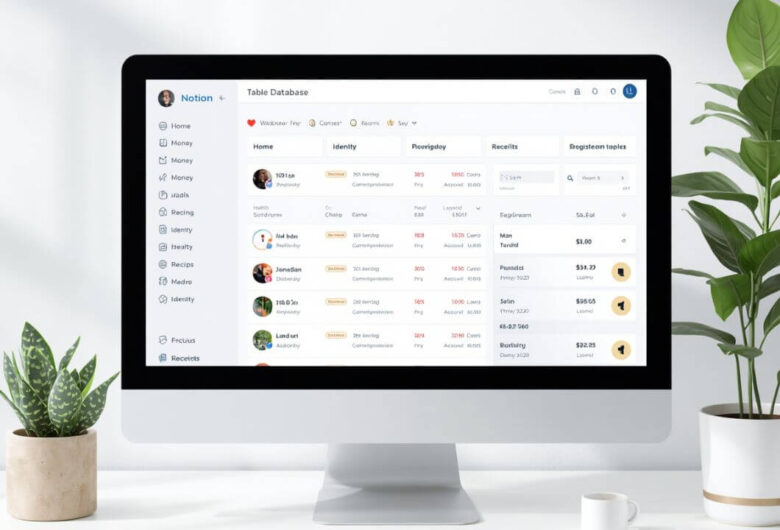
Important documents are easy to lose track of.
A passport scan may be in your downloads folder.
A lease may be in an email attachment.
A warranty may be saved in Google Drive.
A tax document may be on your desktop.
A school or work certificate may be in a folder you rarely open.
Notion can help you create one simple place to track these documents.
It does not have to replace your cloud storage.
In fact, for many people, the best setup is to use Notion as a document dashboard: a place that tells you what you have, where it is stored, when it needs attention, and what to do next.
This guide explains a simple Notion setup for important documents in a calm, beginner-friendly way.
What This Notion Setup Is For
This setup is for tracking important documents, not making your life more complicated.
It can help you organize:
Personal documents
Home documents
Money and tax files
Health documents
School or work records
Receipts and warranties
Travel documents
Family papers
Renewal dates
Document locations
The goal is simple:
You should be able to open Notion and quickly see what important documents you have and where to find them.
That is different from storing every file inside Notion.
Notion can store files and media by adding file blocks or uploading files to a page, but it is also useful as a tracking system with links to files stored elsewhere.
Why Notion Works Well for Document Tracking
Notion works well for important documents because it can combine notes, tables, links, checklists, and reminders in one place.
A Notion database is a collection of pages, and each item in the database can hold details about one document.
That means each document can have its own row and page.
For example, one row could be:
Passport Copy
Inside that row, you can track:
Category
File location
Renewal date
Document owner
Status
Notes
Related reminders
This matters because important documents are not only files.
They often have dates, tasks, and context attached to them.
A passport has an expiration date.
A lease has a renewal date.
A warranty has a purchase date.
A school certificate may need to be uploaded somewhere later.
Notion helps you track those details in a visible way.
Start with One Main Page
Create one Notion page called:
Important Documents
This page becomes your document home base.
Keep it simple.
At the top of the page, add a short note:
This page tracks important documents and where they are stored. The actual files may be in Google Drive, Dropbox, OneDrive, an external drive, or attached inside Notion.
This matters because it prevents confusion later.
Notion does not have to hold every document file. It can point you to the right place.
That makes the system easier to maintain.
Add a Simple Document Database
Inside your Important Documents page, create a database called:
Document Tracker
Use a table view first.
A table is easiest for beginners because you can see all the details in rows and columns.
Notion database properties add context to database items, such as dates, URLs, status fields, and other information you can filter or sort later.
For important documents, useful properties include:
Document Name
Category
Status
Owner
Storage Location
Link to File
Important Date
Review Date
Notes
You do not need too many fields.
Start with what you will actually use.
The Best Simple Notion Properties
Here is a beginner-friendly setup.
Document Name
This is the name of the document.
Examples:
Passport Copy
Lease Agreement
Health Insurance Card
Laptop Receipt
Car Insurance Policy
Tax Documents 2026
Birth Certificate Copy
School Certificate
This matters because the document name should be clear enough to recognize quickly.
Avoid names like:
File 1
Scan
Important
Document
PDF
Use words you would search for later.
Category
Use categories to group documents.
Good categories include:
Home
Money
Health
Identity and Legal
School or Work
Family
Receipts and Warranties
Travel
Archive
This matters because categories help you filter the database.
For example, you can view only Health documents before an appointment, or only Travel documents before a trip.
Keep the categories broad at first.
Too many categories make the system harder to use.
Status
Use a simple status field.
Good status options:
Current
Needs Review
Expired
Archived
Missing File
To Scan
This matters because important documents often need action.
A document may exist, but still need attention.
For example:
A passport copy may be current.
A warranty may be archived.
An insurance policy may need review.
A paper certificate may need scanning.
An old ID copy may be expired.
Status helps you see what needs action without opening every file.
Owner
Use this if your household has documents for more than one person.
Examples:
Me
Partner
Child
Family
Pet
Household
This matters because family documents can get mixed together.
A school form for one child should not be confused with another child’s document.
If you live alone, you can skip this property.
Storage Location
This field tells you where the actual file is stored.
Examples:
Google Drive
Dropbox
OneDrive
iCloud Drive
External Hard Drive
Paper Folder
Notion Attachment
Email
Need to Find
This matters because Notion may not be the only storage place.
You might track a document in Notion while the PDF itself lives in Google Drive.
That is fine.
The tracker should tell you where to go.
Link to File
Use a URL field for the file link.
This could link to:
A Google Drive file
A Dropbox file
A OneDrive file
A cloud folder
A scanned PDF
A related email search
A Notion page attachment
This matters because a tracker becomes much more useful when it takes you directly to the file.
If you do not have a link yet, leave it blank and set the status to Missing File or To Scan.
Important Date
Use this for expiration dates, renewal dates, purchase dates, or document dates.
Examples:
Passport expiration date
Lease end date
Insurance renewal date
Warranty end date
Tax year
Certificate issue date
Travel date
This matters because many documents are time-sensitive.
A document can be easy to find but still outdated.
An important date helps you know when to review it.
Review Date
Use this for when you want to check the document again.
Examples:
Review passport six months before expiration.
Review insurance one month before renewal.
Review tax folder before tax season.
Review warranties once a year.
Review school documents before applications.
This matters because Notion can help you create a calm review habit instead of waiting until something is urgent.
Notes
Use notes for short helpful details.
Examples:
Original paper copy is in the blue folder.
Shared with family member.
Needed for school registration.
Renew before summer travel.
Warranty requires receipt and serial number.
Cloud file is in Family Documents folder.
This matters because some document details do not fit neatly into a file name.
A short note can save time later.
A Simple Example Table
Your Notion database might look like this:
| Document | Category | Status | Storage Location | Important Date | Review Date | Notes |
|---|---|---|---|---|---|---|
| Passport Copy | Identity and Legal | Current | Google Drive | 2028-09-10 | 2028-03-10 | Original in home folder |
| Lease Agreement | Home | Current | OneDrive | 2026-12-31 | 2026-11-30 | Check renewal terms |
| Laptop Receipt | Receipts and Warranties | Current | Google Drive | 2026-04-12 | 2027-04-01 | Needed for warranty |
| Health Insurance Card | Health | Current | Notion Attachment | 2026-01-01 | 2026-12-01 | Update yearly |
| Tax Documents 2026 | Money | Needs Review | Dropbox | 2026-12-31 | 2027-01-15 | Add receipts before filing |
This table does not need to be perfect.
It just needs to help you find things.
Should You Upload Files Into Notion?
You can upload files into Notion, but you do not have to.
Notion supports file blocks, where you can upload a file from your computer or embed a file link on a page.
For a simple document system, choose one of these approaches:
Option 1: Store files elsewhere and link them in Notion
This works well if your documents are already in Google Drive, Dropbox, OneDrive, or iCloud Drive.
Notion becomes your index.
Why this helps:
Your files stay in your normal cloud storage.
Your Notion tracker tells you where everything is.
You avoid uploading duplicates everywhere.
Option 2: Attach small files directly in Notion
This can work for a few simple PDFs or scans.
Why this helps:
The document and notes stay together.
You can open the file from the document page.
It is simple for a small collection.
Option 3: Use both
This is often the most realistic setup.
For example:
Store most documents in Google Drive.
Attach a few small reference files in Notion.
Use Notion to track dates, status, and notes.
This matters because the best system is the one you can maintain.
You do not need to move every file into Notion.
Create Helpful Views
Once your database exists, create a few simple views.
Views let you look at the same documents in different ways.
All Documents
This is your main table.
It shows everything.
Use it when you want a full overview.
Needs Review
Filter the database where status is:
Needs Review
Missing File
To Scan
Expired
This matters because it gives you an action list.
You can open this view and know what needs attention.
By Category
Group or filter documents by category.
This makes it easier to find all Home, Money, Health, or Travel documents.
This matters because you may not always remember the exact document name.
Sometimes you only remember the category.
Upcoming Dates
Create a view sorted by Review Date or Important Date.
This matters because it helps you prepare before deadlines.
For example:
Insurance renewal next month.
Passport review in six months.
Tax folder review in January.
Keep views simple.
Too many views can make Notion feel crowded.
Create a Document Page Template
Notion database templates can automatically add repeated content or properties to new database pages.
For your document tracker, create a simple template called:
New Document
Inside the page, add:
Summary
What is this document for?
Where the file is stored
Cloud link, folder path, or paper location.
Important dates
Expiration, renewal, purchase, or review date.
Notes
Anything useful to remember.
Related tasks
Scan, renew, update, share, or archive.
This matters because templates reduce repeated work.
Every new document page starts with the same helpful structure.
Use Notion as a Map, Not a Messy Storage Box
It is easy to turn Notion into another cluttered place.
Avoid adding random files without context.
Every document entry should answer:
What is this?
Where is the file?
Is it current?
When should I review it?
What action is needed?
This matters because a document tracker should make life simpler.
If Notion becomes a dumping ground, it creates the same problem you were trying to solve.
What Documents to Add First
Do not add everything on the first day.
Start with the documents you would be most stressed to lose or unable to find.
Good first choices:
Passport or ID copies
Lease or mortgage documents
Insurance policies
Tax folders
Health insurance card
School or work certificates
Important receipts
Car documents
Travel documents
Password manager recovery information note, without listing actual passwords
This matters because starting with high-value documents gives you useful results quickly.
You can add less important documents later.
What Not to Put in Notion
Be careful with sensitive information.
Avoid storing plain passwords, full card numbers, private security answers, or unnecessary personal details in a regular Notion page.
Use a password manager for passwords.
Use secure cloud storage and strong account protection for sensitive scans.
This matters because organization should not make private information easier for the wrong person to access.
Notion can track that a document exists and where it is stored, without including every sensitive detail.
For example, instead of writing a full card number, write:
Payment method: Visa ending 1234
Instead of storing a password, write:
Login stored in password manager
Add a Paper Document Location
Not every important document is digital.
Some documents may still be on paper.
Use the Storage Location field for paper too.
Examples:
Blue home folder
Fireproof document box
Filing cabinet
School papers binder
Car glove box
With family member
This matters because a useful document system should help you find both digital and paper files.
Notion can become your map for the whole system.
Add Renewal and Review Reminders
Some documents need attention before they expire.
Examples:
Passport
Driver’s license
Insurance policy
Lease
Warranty
School application
Vehicle registration
Professional certificate
Add a Review Date before the actual expiration or renewal date.
Examples:
Passport expires 2028-09-10. Review 2028-03-10.
Insurance renews 2026-12-01. Review 2026-11-01.
Warranty ends 2027-04-12. Review 2027-03-12.
This matters because waiting until the last minute can be stressful.
A review date gives you time to act calmly.
Create a “To Scan” View
Many important documents start on paper.
Create a status called:
To Scan
Then create a view that only shows documents with that status.
Examples:
Birth certificate
School certificate
Old family document
Insurance letter
Warranty paper
Receipt for appliance
This matters because scanning can be done in batches.
Instead of stopping everything to scan one document, you can collect a few and scan them during a short monthly session.
Create a “Missing File” Status
Sometimes you know a document exists, but you do not know where the file is.
Create a status called:
Missing File
Use it for items like:
Lease you need to find
Old tax form
Lost receipt
Certificate in email
Insurance PDF not saved yet
This matters because it turns uncertainty into a task.
Instead of thinking, “I really need to find that someday,” your Notion tracker keeps a clear list.
Connect Notion to Your Folder Structure
Your Notion setup works best when it matches your file folders.
For example, if your cloud storage has folders like:
Home
Money
Health
Identity and Legal
Receipts
Travel
Archive
Use the same categories in Notion.
This matters because matching names reduce confusion.
If a document is marked Health in Notion, it should probably live in a Health folder in your cloud storage.
Simple matching systems are easier to maintain.
A Beginner-Friendly Setup You Can Copy
Here is a complete Notion setup:
Page name: Important Documents
Database name: Document Tracker
Properties:
Document Name
Category
Status
Owner
Storage Location
Link to File
Important Date
Review Date
Notes
Categories:
Home
Money
Health
Identity and Legal
School or Work
Family
Receipts and Warranties
Travel
Archive
Status options:
Current
Needs Review
To Scan
Missing File
Expired
Archived
Views:
All Documents
Needs Review
To Scan
Missing Files
By Category
Upcoming Reviews
This setup is simple enough for beginners but useful enough to grow over time.
How to Build It in 30 Minutes
First 5 minutes
Create a Notion page called Important Documents.
Add a short note explaining what the page is for.
Next 10 minutes
Create a table database called Document Tracker.
Add the main properties:
Category, Status, Storage Location, Link to File, Important Date, Review Date, Notes.
Next 10 minutes
Add your first 10 documents.
Choose important ones, not random ones.
Examples:
Passport copy, lease, health insurance card, tax folder, car insurance, laptop receipt, school certificate, travel document, warranty, birth certificate.
Last 5 minutes
Create one filtered view called Needs Review.
This matters because you do not need a perfect dashboard on day one.
You need a working tracker.
How to Maintain the Setup
Once a month, open the tracker and check:
Documents marked To Scan
Documents marked Missing File
Documents marked Needs Review
Upcoming review dates
Old documents that should be archived
New documents that need to be added
This can take 10 minutes.
This matters because document organization is not a one-time project.
New documents arrive every month.
A small review habit keeps the system useful.
Common Mistakes to Avoid
Mistake 1: Building Too Much Too Soon
Do not start with ten databases and complex relations.
Begin with one table.
This matters because simple systems are easier to keep using.
Mistake 2: Uploading Everything Without a Plan
Do not turn Notion into a random file pile.
Each document should have a name, category, status, and location.
Mistake 3: Tracking Too Many Details
You do not need every possible field.
Start with the details that help you find and review documents.
Mistake 4: Storing Sensitive Details Carelessly
Do not use Notion as a plain password list.
Track where sensitive information is stored, but use safer tools for passwords and private account details.
Mistake 5: Forgetting Paper Documents
A document tracker should include paper locations too.
If the original is in a home folder, write that down.
The Simple Final Plan
A simple Notion setup for important documents should help you answer:
What documents do I have?
Where are they stored?
Are they current?
When should I review them?
What needs action?
Start with one page.
Create one database.
Add clear categories and simple statuses.
Link to files stored in your cloud drive or attach small files when useful.
Review the tracker once a month.
You do not need a complicated Notion system.
You need a calm place to see your important documents clearly.
Checklist: Simple Notion Setup for Important Documents
- Create one Notion page called Important Documents.
- Add a database called Document Tracker.
- Use a table view first.
- Add properties for Category, Status, Storage Location, Link to File, Important Date, Review Date, and Notes.
- Use broad categories like Home, Money, Health, Identity and Legal, Travel, and Receipts.
- Use simple statuses like Current, Needs Review, To Scan, Missing File, Expired, and Archived.
- Add your 10 most important documents first.
- Link to files stored in Google Drive, Dropbox, OneDrive, or another cloud service.
- Attach small files directly in Notion only when useful.
- Include paper document locations.
- Add review dates before renewals or expiration dates.
- Create views for Needs Review, To Scan, Missing Files, and Upcoming Reviews.
- Avoid storing plain passwords or full card numbers in Notion.
- Review the tracker once a month.
- Keep the setup simple enough to maintain.
FAQ
Can I use Notion to organize important documents?
Yes. Notion works well as a document tracker because you can create a database with categories, statuses, links, dates, and notes. It can help you see what documents you have and where they are stored.
Should I store document files inside Notion?
You can upload files to Notion, but you do not have to. Many people use Notion as an index and store the actual files in Google Drive, Dropbox, OneDrive, iCloud Drive, or an external drive.
What should I track in a Notion document database?
Track the document name, category, status, storage location, file link, important date, review date, and notes. These fields are enough for a simple beginner setup.
What categories should I use for important documents?
Good categories include Home, Money, Health, Identity and Legal, School or Work, Family, Receipts and Warranties, Travel, and Archive.
What statuses should I use?
Use simple statuses such as Current, Needs Review, To Scan, Missing File, Expired, and Archived.
Is Notion safe for sensitive documents?
Be careful with sensitive information. Avoid storing plain passwords, full payment details, or private recovery codes in a regular Notion page. Use strong account security and a password manager for passwords.
How often should I review my Notion document tracker?
A monthly review is enough for most people. Check items marked To Scan, Missing File, Needs Review, and Upcoming Reviews.
Can Notion track paper documents too?
Yes. Use the Storage Location field to write where the paper document is kept, such as filing cabinet, blue folder, document box, or family binder.
What documents should I add first?
Start with documents that would be hard to replace or stressful to find, such as passport copies, insurance policies, lease or mortgage documents, tax folders, health insurance cards, important receipts, and certificates.
Do I need a Notion template?
You do not need one, but a simple database template can save time. Use it to add the same sections to every document page, such as summary, storage location, important dates, notes, and related tasks.