Digital subscriptions are easy to sign up for and easy to forget.
A streaming service here.
A cloud storage plan there.
A music app.
A password manager.
A kids’ learning app.
A software trial that turned into a paid plan.
After a while, it can be hard to remember what you pay for, when each plan renews, and which account manages each subscription.
The solution does not need to be complicated.
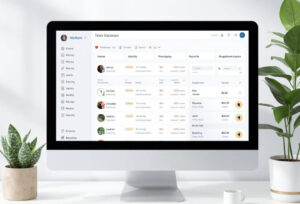
You can track digital subscriptions in one simple place with a spreadsheet, note, or task app.
This guide will show you how to make a calm, practical subscription tracker so you can see what you pay for and make better decisions without digging through emails and bank statements every month.
Why Subscriptions Become Hard to Track
Subscriptions are different from one-time purchases.
They keep renewing in the background.
That is convenient when you use them often. It is frustrating when you forget about them.
Common examples include:
Streaming services, music apps, cloud storage, antivirus software, password managers, fitness apps, photo editing tools, game subscriptions, audiobook apps, news apps, storage upgrades, and app store subscriptions.
The problem is not only the cost.
The problem is visibility.
If you cannot see all your subscriptions in one place, it is hard to know what you still use, what you can cancel, and what needs a reminder before renewal.
The Goal of a Subscription Tracker
A subscription tracker should answer five simple questions:
What am I paying for?
How much does it cost?
When does it renew?
Where is it managed?
Do I still use it?
That is enough for most people.
You do not need a complicated budgeting app to begin.
A simple list can make your digital life much clearer.
The best subscription tracker is the one you will actually update.
Choose One Place to Track Everything
Start by choosing one home for your tracker.
Good free options include:
Google Sheets
Microsoft Excel
Apple Numbers
Google Keep
Apple Notes
Notion
A simple paper notebook
A spreadsheet is usually best because subscriptions have dates, prices, and categories.
But a note can work if you only have a few.
This matters because subscriptions become confusing when information is scattered.
You may have renewal emails in Gmail, payment details in your bank app, app subscriptions in your phone settings, and notes in your head.
One tracker gives you a single place to check.
The Simple Subscription Tracker Columns
Create a table with these columns:
Subscription Name
Category
Monthly or Yearly Cost
Billing Frequency
Renewal Date
Payment Method
Account Email
Where to Manage It
Used Recently?
Action
This may look like a lot, but each column has a purpose.
Here is why each one matters.
Subscription Name
Write the name of the service.
Examples:
Netflix
Spotify
iCloud+
Google One
Microsoft 365
Dropbox
Canva
Duolingo
Audible
Nintendo Switch Online
This matters because the name is the first thing you will search for later.
Use the name you see on the bill or email receipt.
If your bank statement shows a slightly different name, add that too.
Example:
Google One / Google Storage
Category
Group subscriptions by type.
Useful categories include:
Streaming
Music
Cloud Storage
Software
Learning
Kids
Games
News
Fitness
Shopping
Family
Security
This matters because categories help you see patterns.
You may not notice you have five entertainment subscriptions until they are grouped together.
Example:
Netflix: Streaming
Spotify: Music
Google One: Cloud Storage
Bitwarden: Security
Canva: Software
Duolingo: Learning
Categories make review easier.
Monthly or Yearly Cost
Write the cost you actually pay.
If a plan is yearly, write the yearly cost and optionally the monthly equivalent.
Example:
$59.99/year
or
$59.99/year, about $5/month
This matters because yearly plans can be easy to forget.
A subscription that feels small once a year may still belong in your budget.
If prices change, update the tracker when you notice.
Do not worry about making it perfect at first.
Start with the best information you have.
Billing Frequency
Write how often the subscription renews.
Examples:
Monthly
Yearly
Every 3 months
Every 6 months
Free trial ending soon
This matters because monthly and yearly subscriptions need different reminders.
A monthly plan may need a regular check.
A yearly plan may need a reminder before a larger charge.
Renewal Date
Add the next renewal date.
This is one of the most important fields.
Examples:
2026-06-15
2026-10-01
Renews every 3rd of the month
Trial ends 2026-05-30
This matters because renewal dates help you review before you are charged again.
Use a consistent date format if you can.
Year-month-day works well:
2026-06-15
It sorts neatly in spreadsheets.
Payment Method
Write how you pay.
Examples:
Visa ending 1234
PayPal
Apple App Store
Google Play
Bank account
Family member pays
Included with phone plan
This matters because subscriptions are often managed through different payment systems.
A service may not be canceled from the service website if you subscribed through Apple, Google Play, or another provider.
Knowing the payment method saves time.
Account Email
Write the email address connected to the subscription.
This matters because many households have several email accounts.
You may search the wrong inbox and think you cannot find the subscription.
Examples:
personal Gmail
family email
school email
work email
partner’s email
You do not need to write the full email if you prefer privacy.
You can write:
Gmail account
Family email
Dad’s email
Apple ID email
The point is to know where to look.
Where to Manage It
Write where you cancel, change, or check the plan.
Examples:
Service website
Apple Subscriptions
Google Play Subscriptions
Amazon account
Microsoft account
PayPal
Phone provider account
Family organizer account
This matters because digital subscriptions are not always managed where you expect.
For example:
An app subscription may be managed through your phone’s app store.
A streaming subscription may be billed through a TV provider.
A cloud storage plan may be tied to a family account.
A software plan may be tied to PayPal.
This column can save you a lot of searching later.
Used Recently?
Add a simple answer:
Yes
No
Sometimes
Not sure
This matters because subscription decisions should be based on real use, not guilt.
You do not have to cancel everything.
You just need to know what is still useful.
Examples:
Spotify: Yes
Streaming service used once this month: Sometimes
Old editing app: No
Learning app: Not sure
This makes your review calmer.
Action
Use this column to decide what happens next.
Examples:
Keep
Cancel
Downgrade
Review next month
Ask family
Move to yearly
Check price
Free trial ending
This matters because tracking is only useful if it leads to simple decisions.
A tracker should not become another place where information sits untouched.
Each subscription should have a clear next step.
A Simple Subscription Tracker Example
Here is what a beginner tracker might look like:
| Subscription | Category | Cost | Frequency | Renewal Date | Payment Method | Manage It | Used Recently? | Action |
|---|---|---|---|---|---|---|---|---|
| Netflix | Streaming | $15.49 | Monthly | 2026-06-03 | Visa 1234 | Website | Yes | Keep |
| Google One | Cloud Storage | $1.99 | Monthly | 2026-06-12 | Google Play | Google account | Yes | Keep |
| Canva | Software | $12.99 | Monthly | 2026-06-20 | PayPal | Website | Sometimes | Review |
| Kids Learning App | Learning | $49.99 | Yearly | 2026-09-01 | Apple | Apple Subscriptions | No | Cancel before renewal |
| Music App | Music | $10.99 | Monthly | 2026-06-08 | Visa 1234 | Website | Yes | Keep |
You can make your tracker simpler if you want.
The important part is that everything is visible in one place.
Step 1: Search Your Email for Subscription Clues
Start with your email.
Search for words like:
subscription
renewal
receipt
invoice
trial
payment
membership
your plan
billing
charged
Also search for common services you use.
Examples:
Netflix
Spotify
Google
Apple
Microsoft
Dropbox
Canva
Adobe
Amazon
YouTube
iCloud
This matters because email often contains renewal notices, receipts, and account information.
Do not try to organize all emails.
Just use them to find subscription names and details.
Add each subscription to your tracker as you find it.
Step 2: Check Your Bank and Card Statements
Next, check recent bank and credit card statements.
Look at the last two or three months first.
Then check the past year for yearly subscriptions.
Look for repeating charges.
Examples:
A charge every month for the same amount.
A yearly charge you forgot about.
A small app charge from an app store.
A payment through PayPal.
A cloud storage charge.
A streaming service charge.
This matters because not every subscription email is easy to find.
Your payment history can reveal subscriptions you forgot.
If you see a charge but do not recognize it, write it in the tracker as Check.
Do not panic or make assumptions.
Use it as a reminder to investigate calmly.
Step 3: Check App Store Subscriptions
Many digital subscriptions are managed through a phone app store.
Check:
Apple Subscriptions if you use iPhone or iPad.
Google Play Subscriptions if you use Android.
Amazon subscriptions if you use Amazon services.
PayPal automatic payments if you use PayPal.
Microsoft or Google account subscriptions if you use cloud storage or office tools.
This matters because canceling the app itself does not always cancel the subscription.
Deleting an app from your phone usually removes the app, not the billing agreement.
Your tracker should show where each subscription is managed.
Step 4: Check Cloud Storage and Software Accounts
Some important subscriptions are not entertainment.
They help your digital life work.
Examples:
Cloud storage
Password manager
Antivirus or security software
Office software
Photo storage
Website tools
Backup services
File sharing tools
These should not be reviewed only by cost.
Ask whether they protect important files or support something you use regularly.
This matters because some subscriptions have a practical purpose.
For example, a cloud storage plan may protect family photos. A password manager may help keep accounts organized. A backup service may protect important documents.
Do not cancel useful tools just because they are not exciting.
Review them thoughtfully.
Step 5: Add Renewal Reminders
Once your tracker has renewal dates, add calendar reminders.
Use reminders for:
Yearly subscriptions
Free trials
Plans you may cancel
Services with changing prices
Subscriptions used by the family
A good reminder time is 7 to 14 days before renewal.
Example:
Review Canva subscription before renewal — June 6
This matters because decisions are easier before you are charged.
A reminder gives you time to check whether you still use the service.
For yearly plans, you may want a reminder one month before renewal.
Step 6: Mark Family Subscriptions Clearly
Family subscriptions can be confusing.
One person may pay.
Another person may use it.
The account may belong to a parent, partner, or child.
The subscription may be shared across devices.
Add a note for family use.
Examples:
Used by kids for school
Shared with partner
Family streaming account
Paid by Mom, used by everyone
Do not cancel without asking
This matters because subscription decisions can affect other people.
A tracker helps you avoid canceling something someone else depends on.
Step 7: Decide What to Keep, Cancel, or Review
After everything is listed, look at the Used Recently? and Action columns.
Use simple rules.
Keep subscriptions you use often or that protect important files.
Cancel subscriptions you do not use and do not need.
Review subscriptions you are unsure about.
Downgrade subscriptions if you need a smaller plan.
Ask family before changing shared plans.
This matters because the goal is not to cancel as much as possible.
The goal is to make your subscriptions intentional.
You should know what you pay for and why.
Step 8: Create a Monthly Subscription Check-In
A subscription tracker works best with a small habit.
Once a month, open the tracker and check:
New subscriptions
Canceled subscriptions
Upcoming renewals
Free trials
Price changes
Services marked “Review”
Subscriptions no one is using
This can take 10 minutes.
This matters because subscriptions change over time.
A tool you used every day last year may not matter now.
A yearly plan may renew soon.
A free trial may be ending.
A monthly check-in keeps the list current.
Step 9: Keep the Tracker Private but Accessible
Your subscription tracker may include account emails, payment methods, and spending details.
Store it somewhere safe.
Good options:
A private cloud spreadsheet
A password-protected note app
A local spreadsheet backed up safely
A paper copy kept in a safe place
Do not include full card numbers or passwords.
Write payment methods in a safe shorthand.
Example:
Visa ending 1234
not
full credit card number
This matters because a tracker should help you organize, not create a privacy risk.
Keep the information useful but limited.
Step 10: Do Not Track Too Much
A subscription tracker should be simple enough to use.
Avoid adding too many columns at first.
You do not need:
Every feature of the plan
Every login detail
Every invoice number
Every past payment
A complicated scoring system
Start with what helps you make decisions.
Name.
Cost.
Renewal date.
Where to manage it.
Used recently.
Action.
That is enough.
This matters because a tracker that feels like work will not last.
A Simple Template You Can Copy
Use this structure:
Subscription Name
Category
Cost
Billing Frequency
Next Renewal Date
Payment Method
Account Email
Where to Manage
Used Recently?
Action
Example rows:
Spotify | Music | $10.99 | Monthly | 2026-06-08 | Visa 1234 | Personal email | Website | Yes | Keep
Photo Storage | Cloud Storage | $2.99 | Monthly | 2026-06-14 | Apple | Apple ID | Apple Subscriptions | Yes | Keep
Learning App | Education | $49.99 | Yearly | 2026-09-01 | Google Play | Family email | Google Play | No | Cancel before renewal
This template can work in Google Sheets, Excel, Numbers, Notion, or a simple note.
What to Do First Today
Start small.
Create a tracker with only five columns:
Subscription
Cost
Renewal Date
Where to Manage
Action
Then add the subscriptions you remember first.
After that, search your email and bank statement to fill in the rest.
You do not need to complete the tracker perfectly today.
Even a short list is better than guessing.
The first goal is visibility.
Once you can see your subscriptions in one place, decisions become much easier.
Checklist: Track Digital Subscriptions in One Place
- Choose one place for your subscription tracker.
- Use a spreadsheet if you have more than a few subscriptions.
- Add subscription name, cost, renewal date, payment method, and action.
- Search email for receipts, renewals, invoices, and trials.
- Check bank and card statements for repeat charges.
- Review Apple, Google Play, PayPal, Amazon, Microsoft, and Google account subscriptions.
- Add where each subscription is managed.
- Mark whether you use each subscription.
- Add notes for family or shared subscriptions.
- Set reminders before yearly renewals.
- Review free trials before they become paid.
- Keep payment details private and limited.
- Do not store passwords in the tracker.
- Review the tracker once a month.
- Cancel, downgrade, or keep subscriptions based on real use.
FAQ
What is the easiest way to track digital subscriptions?
The easiest way is to create a simple spreadsheet with the subscription name, cost, renewal date, payment method, where to manage it, and action. This gives you one place to see everything.
What should I include in a subscription tracker?
Include the subscription name, category, cost, billing frequency, renewal date, payment method, account email, where to manage it, whether you use it, and the next action.
How do I find subscriptions I forgot about?
Search your email for words like subscription, renewal, receipt, invoice, trial, billing, and membership. Then check bank statements, app store subscriptions, PayPal, and major accounts like Apple, Google, Microsoft, and Amazon.
Should I use an app or spreadsheet to track subscriptions?
A spreadsheet is a good beginner choice because it is simple, flexible, and easy to update. A note can work if you only have a few subscriptions.
How often should I review my subscriptions?
Review them once a month. Also set reminders before yearly renewals and free trial end dates.
Should I cancel subscriptions I do not use every month?
Not always. Some subscriptions may be useful seasonally or protect important files. Instead of canceling immediately, mark them as Review and decide before the next renewal.
How do I track family subscriptions?
Add a note showing who uses each subscription and who pays for it. For shared services, mark “Ask family before canceling” so you do not remove something someone else needs.
Is it safe to list payment methods in a tracker?
Use limited details only, such as “Visa ending 1234” or “PayPal.” Do not write full card numbers or passwords in the tracker.
What is the most important subscription to track?
Yearly subscriptions and free trials are especially important because they are easy to forget. Cloud storage, backup, and password manager subscriptions are also important because they may protect your digital life.
What should I do after making the tracker?
Add renewal reminders, review subscriptions monthly, and update the tracker whenever you start, cancel, or change a subscription.