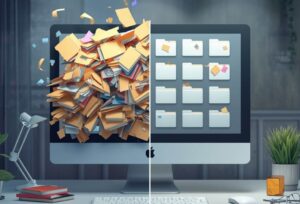
Personal documents can become messy quickly.
A bill gets saved to Downloads.
A tax file stays on the desktop.
A scanned document has a name like scan_001.pdf.
A school form is buried in email.
A receipt is saved in a random folder.
After a while, finding one document takes longer than it should.
The solution is not to create a perfect filing system with dozens of folders.
The solution is to create a simple folder structure that matches real life.
This guide will show you the best folder structure for personal documents, why it works, and how to start using it without feeling overwhelmed.
The Simple Goal
The goal of a personal document folder structure is easy:
You should know where to save a document and where to look for it later.
That is it.
A good folder structure should help you answer simple questions:
Where should I save this insurance document?
Where is last year’s tax file?
Where did I put my lease?
Where are my school forms?
Where are my receipts?
If your folders answer those questions clearly, the system is working.
It does not need to be complicated.
The Best Beginner Folder Structure
Here is a simple folder structure that works well for many people:
Personal Documents
- 01 Home
- 02 Money
- 03 Health
- 04 Work or School
- 05 Family
- 06 Identity and Legal
- 07 Receipts and Warranties
- 08 Travel
- 09 To Sort
- 10 Archive
This structure is broad enough to handle most personal documents.
It is also simple enough to keep using.
The numbers at the beginning are optional, but helpful. They keep the folders in the same order instead of letting your computer sort them alphabetically.
This matters because a stable order makes the system easier to remember.
Why Broad Folders Work Better
Many people make the mistake of creating too many folders too soon.
For example:
Money > Bills > Electricity > 2026 > Paid > PDF > Final
That may look organized, but it can become tiring.
The next time you save a file, you may not know exactly where it belongs.
A simpler version is usually better:
Money > Bills > 2026
This matters because a folder system should reduce decisions.
If every file requires too much thinking, the system will not last.
Start broad. Add detail only when you truly need it.
Folder 1: Home
Use the Home folder for documents related to where you live.
This may include:
Lease agreements, mortgage documents, home insurance, utility setup papers, repair records, appliance manuals, moving documents, and landlord or property information.
Example folders inside Home:
- Lease or Mortgage
- Utilities
- Insurance
- Repairs
- Manuals
- Moving
This matters because home documents are often needed quickly.
If there is a repair, a move, or a question about your lease, you do not want to search through Downloads or email for the right file.
Folder 2: Money
Use the Money folder for financial documents.
This may include:
Bank statements, tax documents, budgets, loan papers, credit card records, insurance payments, investment documents, and important payment confirmations.
Example folders inside Money:
- Taxes
- Bank
- Budget
- Loans
- Insurance Payments
- Important Statements
You can also organize by year inside some folders.
For example:
Money > Taxes > 2025
Money > Taxes > 2026
This matters because money documents often depend on dates.
A year-based structure makes tax season, budgeting, and record checking much easier.
Folder 3: Health
Use the Health folder for personal medical and health-related documents.
This may include:
Insurance cards, appointment letters, test results, prescriptions, vaccination records, dental documents, vision documents, and health expense receipts.
Example folders inside Health:
- Insurance
- Appointments
- Prescriptions
- Dental
- Vision
- Receipts
This matters because health documents can be difficult to find when you need them.
A clear folder helps you keep important information in one place.
For privacy, make sure this folder is backed up safely and protected with good account security if stored in the cloud.
Folder 4: Work or School
Use this folder for work, school, or study documents.
If you work and study, you can split it into two folders:
Work
School
Examples for Work:
- Resume
- Pay Records
- Contracts
- Training
- Projects
- References
Examples for School:
- Classes
- Assignments
- Certificates
- Applications
- Forms
This matters because work and school files often change over time.
Keeping them separate from home and money documents makes them easier to manage.
If you have many active files, add a Current folder.
For example:
Work > Current Projects
School > Current Classes
Folder 5: Family
Use the Family folder for documents connected to household members and family life.
This may include:
School forms, childcare documents, pet records, family schedules, activity forms, shared household documents, and important family notes.
Example folders inside Family:
- Children
- School Forms
- Pets
- Activities
- Shared Documents
This matters because family documents often come from many places.
They may arrive by email, paper, school portals, or text messages.
Saving them in one folder prevents them from being scattered across devices.
Folder 6: Identity and Legal
Use the Identity and Legal folder for documents that prove identity, ownership, or legal status.
This may include:
Scanned IDs, passports, birth certificates, marriage documents, legal agreements, immigration documents, vehicle titles, and important official letters.
Example folders inside Identity and Legal:
- IDs
- Passports
- Certificates
- Legal Agreements
- Vehicle Documents
This matters because these documents are important and often hard to replace.
Keep this folder organized, backed up, and protected.
If you store copies in the cloud, use strong account security and two-factor authentication.
Folder 7: Receipts and Warranties
Use this folder for receipts you may need later.
This may include:
Electronics receipts, appliance receipts, furniture receipts, repair receipts, warranty papers, and return confirmations.
Example folders inside Receipts and Warranties:
- Electronics
- Appliances
- Furniture
- Repairs
- Online Orders
- Warranties
This matters because receipts are often needed months later, not the day you save them.
A clear receipt folder helps when something breaks, needs returning, or must be claimed under warranty.
A useful file name might be:
2026-04-12 Laptop Receipt.pdf
That is much easier to find than:
order-confirmation.pdf
Folder 8: Travel
Use the Travel folder for trip-related documents.
This may include:
Flight confirmations, hotel bookings, travel insurance, passport copies, tickets, itineraries, rental car details, maps, and visa documents.
Example folders inside Travel:
- 2026 Italy Trip
- 2026 Family Visit
- Travel Insurance
- Passport Copies
- Old Trips
This matters because travel documents are often time-sensitive.
When you are packing or at the airport, you need to find them quickly.
Organizing by trip usually works better than organizing by document type.
Folder 9: To Sort
The To Sort folder is for documents that need a temporary place.
Use it when you do not have time to file something properly.
Examples:
A PDF you downloaded quickly.
A form someone sent you.
A receipt you need to rename.
A scanned document with an unclear name.
This matters because real life is busy.
A To Sort folder gives you a safe landing place instead of letting files pile up on the Desktop or in Downloads.
But keep one rule:
Do not let To Sort become permanent.
Review it weekly or monthly.
If a file matters, move it.
If it is old but uncertain, archive it.
If you do not need it, delete it when you are sure.
Folder 10: Archive
Use the Archive folder for old documents you do not use often but want to keep.
This may include:
Old school files, old work files, past leases, old tax folders, old projects, past travel documents, and files from previous computers.
Example folders inside Archive:
- 2023 Old Files
- 2024 Old Files
- Old Desktop
- Old Downloads
- Previous Computer
- Past Projects
This matters because old files can clutter your active folders.
Archive lets you keep them without seeing them every day.
It also helps you avoid deleting files too quickly.
How to Name Personal Documents
A good folder structure works even better with clear file names.
Use names that include:
Date
Document type
Short description
A simple format is:
YYYY-MM-DD Description.pdf
Examples:
2026-01-15 Rent Agreement.pdf
2026-02-03 Health Insurance Card.pdf
2026-04-12 Laptop Receipt.pdf
2026-05-01 School Permission Form.pdf
2026-05-20 Car Insurance Policy.pdf
This matters because search becomes easier.
If you type “car insurance” into search, a clearly named file will be easier to find.
If the file is named scan17.pdf, you may have to open several files before finding the right one.
When to Use Dates and When Not To
Dates are helpful, but you do not need them for every file.
Use dates for:
Bills, receipts, tax files, statements, forms, contracts, appointments, travel bookings, and versions of documents.
You may not need dates for:
A general resume folder, a passport copy, a home manual, or a reference document that does not change often.
This matters because too many rules make organization harder.
Use dates where they help you find things faster.
A Simple Yearly Structure
Some documents work best by year.
Good examples include:
Taxes, receipts, bank statements, school documents, insurance papers, and medical receipts.
Example:
Money > Taxes > 2026
Receipts and Warranties > 2026
Health > Receipts > 2026
School > 2026
This matters because many personal documents are reviewed by year.
When tax season comes, you will know where that year’s files are.
When you need a receipt from last year, the search area is smaller.
Keep Current and Old Documents Separate
If a folder becomes crowded, add two simple sections:
Current
Archive
For example:
Home > Current
Home > Archive
or
Work > Current Projects
Work > Past Projects
This matters because you probably do not need old files every week.
Keeping current documents separate makes daily use easier.
Older documents are still available, but they are not in the way.
What to Do with Downloads
The Downloads folder should not be your filing system.
Use it as a temporary place only.
A simple habit:
When you download a document, either save it directly into the right folder or move it at the end of the day.
Examples:
A tax form goes to Money > Taxes > 2026.
A school form goes to Family > School Forms.
A hotel booking goes to Travel > 2026 Italy Trip.
A receipt goes to Receipts and Warranties > 2026.
This matters because Downloads becomes messy when files stay there too long.
Once a file is important, give it a real home.
What to Do with Scanned Documents
Scanned documents often have unclear names.
Your scanner may create files like:
scan0001.pdf
document.pdf
IMG_5432.jpg
Rename scanned files as soon as possible.
Examples:
2026-03-10 Dental Receipt.pdf
2026-04-02 Lease Renewal.pdf
2026-05-14 Passport Copy.pdf
Then move them into the right folder.
This matters because scanned files are hard to recognize later if the name does not explain the content.
A clear name saves time every time you search.
What to Do with Email Attachments
Important documents often arrive by email.
Do not leave them only in your inbox.
Download and save them into your folder structure.
Examples:
An insurance document goes to Money > Insurance or Home > Insurance.
A school attachment goes to Family > School Forms.
A medical document goes to Health.
A travel confirmation goes to Travel.
This matters because email is not a clear filing system.
Messages can be buried, deleted, or hard to search later.
Saving the attachment gives you control.
How to Keep the Structure from Getting Messy
A folder structure only works if you maintain it lightly.
You do not need a long cleanup session every week.
Try a 10-minute monthly reset.
During the reset:
Clear the To Sort folder.
Move important Downloads.
Rename unclear scanned files.
Move old files to Archive.
Check that important folders are backed up.
This matters because small maintenance prevents big cleanup projects later.
It is easier to file ten documents monthly than sort hundreds once a year.
Back Up Your Personal Documents Folder
Once your folder structure is working, back it up.
At minimum, keep a copy in cloud storage or on an external hard drive.
For stronger protection, use both.
Example:
Your Personal Documents folder is stored on your computer.
It syncs to cloud storage.
Once a month, you copy it to an external hard drive.
This matters because organization is not the same as protection.
A well-organized folder can still be lost if it exists in only one place.
Backups make the system safer.
Where Should This Folder Live?
Your main Personal Documents folder should live somewhere easy to access and easy to back up.
Good options include:
Your Documents folder
A cloud-synced folder
An external drive plus a cloud copy
A dedicated folder on your computer that is included in backup
Avoid storing important documents only on the Desktop or only in Downloads.
This matters because your main folder should be stable.
It should not move around or depend on a temporary location.
A Complete Example Folder Structure
Here is a full example you can copy:
Personal Documents
- 01 Home
- Lease or Mortgage
- Utilities
- Insurance
- Repairs
- Manuals
- 02 Money
- Taxes
- Bank
- Budget
- Loans
- Important Statements
- 03 Health
- Insurance
- Appointments
- Prescriptions
- Dental
- Receipts
- 04 Work or School
- Current
- Applications
- Certificates
- Archive
- 05 Family
- Children
- School Forms
- Pets
- Activities
- 06 Identity and Legal
- IDs
- Passports
- Certificates
- Legal Agreements
- Vehicle Documents
- 07 Receipts and Warranties
- Electronics
- Appliances
- Furniture
- Repairs
- Online Orders
- 08 Travel
- Current Trip
- Past Trips
- Travel Insurance
- Passport Copies
- 09 To Sort
- 10 Archive
- Old Desktop
- Old Downloads
- Previous Computer
- Past Projects
This is not the only correct structure.
It is a simple starting point.
You can remove folders you do not need and add folders that match your life.
How to Start in 20 Minutes
You can start without organizing everything.
First 5 minutes
Create the main folder called Personal Documents.
Add the ten main folders.
Next 5 minutes
Move five obvious documents into the right places.
For example:
A lease to Home.
A tax file to Money.
A prescription document to Health.
A passport copy to Identity and Legal.
A receipt to Receipts and Warranties.
Next 5 minutes
Create a To Sort folder and move unclear recent files into it.
Last 5 minutes
Choose one backup method for the new Personal Documents folder.
This matters because a small start is better than waiting for a full free afternoon.
Once the structure exists, using it becomes easier.
The Simple Final Rule
The best folder structure for personal documents is the one you can use without thinking too much.
Keep it broad.
Use clear names.
Add dates when helpful.
Use Archive for old files.
Use To Sort only as a temporary place.
Back up the whole folder.
You do not need a perfect system.
You need a system that makes the next document easier to save and the next important file easier to find.
That is what good digital organization is for.
Checklist: Personal Document Folder Structure
- Create one main folder called Personal Documents.
- Add broad categories instead of many tiny folders.
- Use numbered folders if you want a stable order.
- Include folders for Home, Money, Health, Work or School, Family, Identity and Legal, Receipts, Travel, To Sort, and Archive.
- Use To Sort only as a temporary folder.
- Use Archive for old files you do not need often.
- Rename scanned files with clear descriptions.
- Add dates to receipts, bills, tax files, contracts, and statements.
- Organize taxes and receipts by year.
- Keep current documents separate from old documents.
- Move important email attachments into the right folder.
- Do not use Downloads as permanent storage.
- Back up your Personal Documents folder.
- Review and clean To Sort monthly.
FAQ
What is the best folder structure for personal documents?
A simple structure is: Home, Money, Health, Work or School, Family, Identity and Legal, Receipts and Warranties, Travel, To Sort, and Archive. This covers most personal documents without becoming too complicated.
Should I organize documents by category or by year?
Use both. Start with categories like Money or Health, then use years inside folders where dates matter. For example: Money > Taxes > 2026.
How many folders should I create?
Start with fewer folders than you think you need. Around 8 to 10 main folders is enough for most people. Add subfolders only when a folder becomes crowded.
Should I number my folders?
Numbering folders is optional, but helpful. It keeps folders in a stable order, such as 01 Home, 02 Money, and 03 Health.
What should go in the Archive folder?
The Archive folder is for old files you may need later but do not use often. This can include old tax folders, past leases, previous school files, old work projects, and files from an old computer.
What should go in the To Sort folder?
The To Sort folder is for temporary files you have not filed yet. It should be reviewed regularly so it does not become another messy storage area.
How should I name personal documents?
Use clear names with dates when helpful. For example: 2026-04-12 Laptop Receipt.pdf or 2026-01-15 Rent Agreement.pdf.
Where should I store personal documents?
Store them in one main folder that is easy to access and included in your backup system. This may be your Documents folder or a cloud-synced folder.
Should I keep important documents in cloud storage?
Cloud storage can be helpful, especially if you need access from different devices. For important documents, also keep a backup copy, such as an external hard drive.
How often should I organize my documents?
A short monthly reset is usually enough. Clear To Sort, move important downloads, rename scanned files, and check that your main folder is backed up.