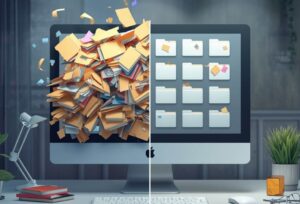
Digital files can become messy slowly.
A few downloads stay on the desktop.
A few documents get saved in the wrong folder.
Photos land in different places.
Old files stay because you are not sure what they are.
Before long, your computer feels confusing.
Many people think the only solution is to start over.
But you do not need to delete everything.
You do not need to rebuild your whole computer.
You do not need a perfect filing system.
You only need a simple way to make your files easier to find from now on.
This guide will show you how to organize your digital files without starting over.
The goal is not perfection.
The goal is less confusion.
Start with a Calm Rule
Here is the most helpful rule:
Do not reorganize everything at once. Create one clear place for important files, then move forward slowly.
This matters because digital clutter can feel overwhelming when you treat it like one huge project.
You may have years of files, old downloads, screenshots, school papers, work documents, photos, receipts, and folders with names you do not remember.
Trying to fix all of it in one day usually leads to frustration.
A smaller system is easier to keep using.
Do Not Delete First
When your files feel messy, it is tempting to start deleting.
But deleting first can create stress.
You may worry that you are removing something important. You may stop halfway. Or you may spend an hour opening old files that do not matter right now.
Instead, organize first.
Create a safe structure. Move important files into it. Leave uncertain files alone for now.
This matters because the first goal is to find what you need, not to make your storage look perfect.
You can delete later when you feel more confident.
Create One Main Folder
Start by creating one main folder for your organized files.
Choose a name that is easy to understand.
Good options include:
My Files
Important Files
Home Files
Personal Files
Family Files
This folder becomes your new home base.
From now on, important files should go here instead of being scattered across the Desktop, Downloads, Documents, and random folders.
This matters because one main folder reduces decision fatigue.
Instead of asking, “Where should this go?” you begin with one answer: “It goes in my main folder.”
Add a Few Simple Categories
Inside your main folder, create a small number of categories.
Do not make too many.
A simple beginner structure could be:
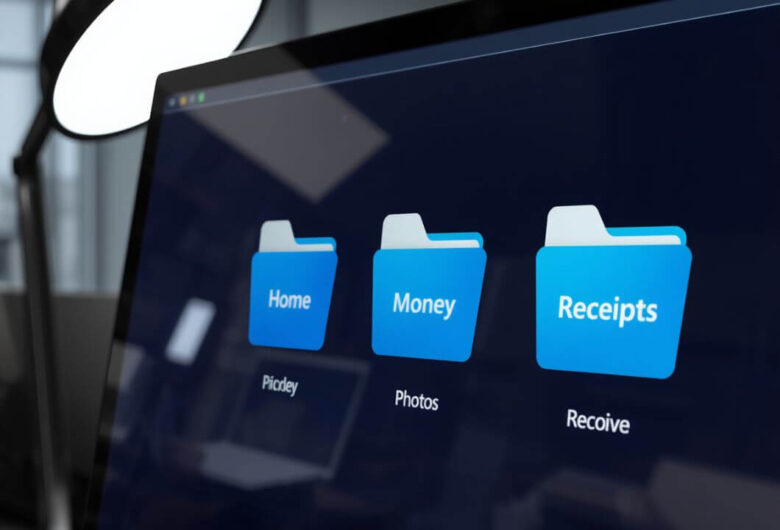
- Home
- Money
- Health
- School or Work
- Photos
- Receipts
- Personal
- Archive
These categories are broad enough for most people.
For example:
A rental agreement goes in Home.
A tax form goes in Money.
A prescription document goes in Health.
A resume goes in School or Work.
A scanned passport copy goes in Personal.
A receipt for a laptop goes in Receipts.
This matters because broad folders are easier to maintain than very detailed systems.
If your system has too many choices, you may stop using it.
Use an Archive Folder for Old Messy Files
You do not need to sort every old file today.
Create a folder called Archive.
Inside it, create folders by year or by old location.
For example:
Archive > Old Desktop
Archive > Old Downloads
Archive > Old Documents
Archive > 2022 Files
Archive > 2023 Files
Then move old messy folders there when you are not ready to sort them.
This matters because it gives you progress without forcing every decision now.
Your daily workspace becomes cleaner, but you still keep access to older files.
Archive is not a trash can.
It is a holding area for files you may need later.
Clean Your Desktop First
The desktop is often the most stressful place to look.
It is also one of the easiest places to improve quickly.
Start by creating a folder on the desktop called:
Desktop Review
Move everything from the desktop into that folder except items you use every day.
Then sort only the obvious files.
For example:
Move a tax PDF to Money.
Move a family photo to Photos.
Move a resume to School or Work.
Move old screenshots to Archive.
Leave uncertain items in Desktop Review.
This matters because a clear desktop makes your computer feel calmer right away.
You are not deleting everything.
You are simply giving the mess a container.
Tame the Downloads Folder
The Downloads folder often becomes a digital junk drawer.
It may include PDFs, receipts, photos, installers, forms, screenshots, and duplicate files.
Do not try to sort the whole folder perfectly.
Instead, use a simple three-step method.
First, sort by date.
Second, move recent important files into your main folder.
Third, move old uncertain files into Archive > Old Downloads.
Examples:
A downloaded bank statement goes to Money.
A school assignment file goes to School or Work.
A recipe PDF goes to Personal.
A software installer you already used can usually be deleted later.
An unknown old file can go to Archive for now.
This matters because Downloads keeps growing.
If you clean it once but do not change your habit, it will become messy again.
After today, try to move useful downloads to the right folder the same day you download them.
Make File Names Easier to Search
You do not need perfect file names.
You just need names that help you find things later.
Use simple names with a date and clear words.
Examples:
2026-03 Rent Agreement.pdf
2026 Tax Documents Checklist.docx
Emma School Form May 2026.pdf
Car Insurance Policy 2026.pdf
Kitchen Renovation Receipt 2025.pdf
This matters because search works better when file names include useful words.
A file called scan0038.pdf is hard to find.
A file called 2026 Health Insurance Card.pdf is much easier.
You do not need to rename every old file.
Start renaming new important files from today.
Use Dates in a Simple Way
Dates help keep files in order.
A good format is:
YYYY-MM-DD
For example:
2026-05-21 Doctor Receipt.pdf
This format sorts well on computers because the year comes first, then the month, then the day.
You do not need to use dates for every file.
Use them for files where timing matters.
Good examples include:
Receipts, bills, contracts, school forms, tax files, medical documents, travel plans, and project drafts.
This matters because dates reduce guessing.
You can quickly see which file is newest.
Do Not Create Too Many Folders
Too many folders can make organizing harder.
For example, this may be too detailed for a beginner:
Money > Taxes > Tax Year > Forms > Uploaded > Final > Sent > PDF
A simpler version is easier:
Money > Taxes > 2026
This matters because a folder system should save time, not create extra work.
If you need more detail later, you can add it.
Start broad.
Let the system grow only when there is a real reason.
Use a “To Sort” Folder Carefully
A To Sort folder can be helpful, but only if you keep it small.
Use it for files you do not have time to place right now.
For example:
A PDF you downloaded while busy.
A screenshot you need to review.
A file someone sent you that needs a better name.
This matters because a To Sort folder can easily become another messy drawer.
Set a simple rule:
Review it once a week or once a month.
If the file is important, move it.
If it is old and unclear, put it in Archive.
If it is not needed, delete it when you are sure.
Organize Photos Separately
Photos often need their own system.
Do not mix every photo into general documents.
Create a folder called Photos or Family Photos.
Inside, organize by year.
For example:
Photos > 2024
Photos > 2025
Photos > 2026
Inside each year, you can add simple event folders.
Examples:
2026 Beach Trip
2026 Birthday Party
2026 School Photos
2026 Grandparents Visit
This matters because photos can grow quickly.
A year-based system is easy to understand and easy to back up.
Do not wait until every photo is sorted perfectly.
Put photos into the right year first.
That is enough to begin.
Keep Current Files Separate from Old Files
A common problem is mixing current files with old files.
For example, your active school project may sit next to documents from five years ago.
That makes it harder to focus.
Create a folder called Current inside any category where you need it.
Examples:
School or Work > Current
Money > Current
Home > Current
Then move finished or old files to an archive folder.
Examples:
School or Work > Archive 2025
Money > Taxes 2024
Home > Old Lease Documents
This matters because you probably only need a small number of active files each week.
Keeping them separate makes your daily work easier.
Make a Simple Weekly Reset
Digital organization works best with a small habit.
Choose one weekly reset time.
It can take 10 minutes.
During the reset:
Move files from Desktop Review.
Move useful downloads.
Rename any important files with unclear names.
Clear the To Sort folder.
Move finished files out of Current folders.
This matters because file clutter returns when there is no routine.
A short weekly reset prevents the mess from becoming overwhelming again.
You do not have to finish everything.
Just make the next week easier.
Back Up Your Organized Folder
Once you create your main folder, back it up.
This is important.
A cleaner file system does not help if the files only exist on one device.
Use at least one backup method.
For example:
Sync the folder to cloud storage.
Copy it to an external hard drive once a month.
Use both cloud backup and an external drive for important files.
This matters because organization and backup work together.
Organization helps you find files.
Backup helps you recover them if something goes wrong.
A good folder system should be easy to back up because everything important is in one place.
What to Do with Files You Are Unsure About
Not every file has an obvious answer.
If you find a file and do not know what it is, do not spend too long on it.
Ask three questions:
Do I recognize this file?
Would I need it for money, health, home, school, work, or family memories?
Can I replace it easily if I delete it?
If you are unsure, move it to Archive.
This matters because uncertainty slows everything down.
You can always review archived files later.
The main goal is to keep your active space clear and useful.
A Simple File System Example
Here is a complete beginner-friendly folder system:
Personal Files
- Home
- Money
- Health
- School or Work
- Photos
- Receipts
- Personal
- To Sort
- Archive
Inside Money, you might have:
- Taxes
- Bank
- Insurance
- Budget
Inside Photos, you might have:
- 2024
- 2025
- 2026
- Scanned Old Photos
Inside Archive, you might have:
- Old Desktop
- Old Downloads
- Old Documents
This system is simple on purpose.
It gives most files a place without making you think too hard.
How to Start in 30 Minutes
You can make real progress in half an hour.
First 5 minutes
Create your main folder and basic categories.
Next 10 minutes
Move obvious important files from your desktop into the right folders.
Next 10 minutes
Open Downloads, sort by date, and move only recent important files.
Last 5 minutes
Create an Archive folder and move old confusing items into it.
This matters because starting is often the hardest part.
A 30-minute session can make your computer feel more manageable without forcing a full cleanup.
What Not to Do
Do not start by deleting hundreds of files.
Do not create twenty categories on the first day.
Do not rename every old file before you have a system.
Do not organize files across three cloud services without a reason.
Do not wait for the perfect folder structure.
These habits can make the project feel bigger than it needs to be.
Start with one main folder, broad categories, and a small weekly routine.
That is enough.
The Simple Final Plan
You do not need to start over to organize your digital files.
You need a clear place for important files, a few simple categories, and a way to handle old clutter without getting stuck.
Start here:
Create one main folder.
Add broad categories.
Move obvious files first.
Use Archive for old messy files.
Rename important files clearly.
Back up the folder.
Do a short weekly reset.
This approach works because it respects real life.
Your files did not become messy in one day.
They do not need to become perfect in one day either.
A simple system you keep using is better than a perfect system you abandon.
Checklist: Organize Digital Files Without Starting Over
- Create one main folder for important files.
- Add a few broad categories.
- Avoid making too many folders at first.
- Move obvious important files first.
- Create an Archive folder for old messy files.
- Create a To Sort folder only if you will review it.
- Clean the desktop by moving items into a Desktop Review folder.
- Sort Downloads by date and move recent important files.
- Use clear file names for new important files.
- Add dates to files where timing matters.
- Organize photos by year.
- Keep current files separate from old files.
- Back up your main folder to cloud storage or an external drive.
- Do a 10-minute weekly reset.
- Delete files only when you are sure you do not need them.
FAQ
Do I need to delete everything to organize my digital files?
No. You can organize your files without deleting everything or starting over. Begin by creating one main folder for important files and moving obvious items into it.
What is the best folder structure for beginners?
A simple beginner structure is: Home, Money, Health, School or Work, Photos, Receipts, Personal, To Sort, and Archive. These broad folders are easy to understand and maintain.
Should I organize my Desktop or Downloads folder first?
Start with the Desktop if it makes your computer feel stressful. Then work on Downloads. Both can be handled by moving obvious files into your main folder and old uncertain files into Archive.
What should I do with files I do not recognize?
If you are unsure, do not delete them right away. Move them into an Archive folder. You can review them later when you have more time.
How should I name digital files?
Use clear names with useful words and dates when helpful. For example, “2026 Car Insurance Policy.pdf” is easier to find than “scan004.pdf.”
Is it better to organize by date or category?
Use both when helpful. Categories work well for documents, such as Money or Health. Dates work well inside those categories, especially for receipts, taxes, bills, and photos.
How do I stop my files from getting messy again?
Create a small weekly reset. Spend 10 minutes moving downloads, clearing your desktop, renaming important files, and emptying your To Sort folder.
Should I organize photos with my other files?
Photos usually work better in their own folder, organized by year. For example: Photos > 2026 > Summer Trip.
Do I need cloud storage to organize files?
No, but cloud storage can help you access and back up files. Even if you organize files on your computer, important files should be backed up somewhere else.
What is the easiest way to start today?
Create one folder called “Personal Files” or “Important Files.” Add a few broad categories. Move five important files into the right places. That is enough to begin.