Backing up files can feel confusing.
You may know you should do it, but not know where to start. Should you use cloud storage? An external hard drive? A USB stick? Your phone’s backup setting?
The 3-2-1 backup rule gives you a simple way to think about it.
It is not a complicated tech rule. It is a practical safety habit for your digital life.
In simple terms, the 3-2-1 backup rule means:
Keep 3 copies of your important files, on 2 different types of storage, with 1 copy stored somewhere separate.
That may sound like a lot at first, but it can be simple.
For many people, this could mean:
Your laptop has the original files.
Your files are backed up to an external hard drive.
Your most important files are also backed up to the cloud.
That is already a basic 3-2-1 setup.
Why Backups Matter
A backup is not just for “computer people.”
It is for anyone who has files they would be upset to lose.
This may include:
Photos of family and friends, school documents, work files, scanned papers, tax records, creative projects, recipes, home documents, or videos from your phone.
Files can disappear for ordinary reasons.
A laptop stops working. A phone falls and will not turn on. A folder is deleted by mistake. An external drive gets lost. A cloud account fills up and stops syncing.
A backup gives you a second chance.
It turns a stressful problem into something you can recover from.
What the 3-2-1 Backup Rule Means
The 3-2-1 rule has three parts.
Each part protects you from a different kind of problem.
3 Copies of Your Files
The first number means you should have three copies of important files.
That usually means:
The original file plus two backups.
For example, if you have family photos on your laptop, you do not want the laptop to be the only place they exist.
A safer setup would be:
The photos on your laptop.
A copy on an external hard drive.
A copy in cloud backup.
This matters because one copy is easy to lose.
Two copies are better.
Three copies give you more room for ordinary mistakes.
2 Different Types of Storage
The second number means your files should be stored in two different ways.
For example:
Computer storage and cloud storage.
Computer storage and an external hard drive.
External hard drive and cloud storage.
This matters because different storage types have different weaknesses.
An external hard drive can fail or be dropped.
Cloud storage can stop syncing if your account is full or your password is lost.
Your computer can break or be stolen.
Using two types of storage means one problem is less likely to affect every copy.
1 Copy Stored Somewhere Separate
The final number means one copy should be stored away from your main device.
This is often called an off-site copy.
It does not have to be complicated.
For many people, cloud backup is the easiest off-site copy because it is not stored in your home.
Another option is keeping an external drive at a trusted family member’s house or in another safe location.
This matters because some problems affect everything in one place.
If your laptop and backup drive are in the same bag, both can be stolen.
If your computer and external drive are on the same desk, both can be damaged by the same spill.
A separate copy gives you protection from bigger problems.
A Simple 3-2-1 Backup Example
Here is a beginner-friendly setup.
Copy 1: Your Main Device
This is where your files normally live.
It might be your laptop, desktop computer, phone, or tablet.
Example:
Your Documents folder is on your laptop.
Your phone stores your recent photos.
Your desktop has your school or work files.
This copy is convenient, but it is not enough by itself.
Devices are easy to lose, break, or replace.
Copy 2: An External Hard Drive
This is a local backup you can keep at home.
You plug it into your computer and copy important files or use backup software.
Example:
Once a month, you connect an external hard drive and back up your Documents, Pictures, and Desktop folders.
This copy is useful because it can restore files quickly.
It also helps if your internet is slow or if you have large photo and video folders.
After the backup finishes, unplug the drive and store it safely.
This matters because a drive that stays connected all the time is less separate from your computer.
Copy 3: Cloud Backup
This is your off-site copy.
It stores your files online through a cloud service.
Example:
Your phone photos back up automatically.
Your computer’s Documents and Pictures folders sync to cloud storage.
Your most important scanned documents are saved in a secure cloud folder.
This copy is useful because it protects you if something happens to your device or home copy.
Cloud backup is also easier to keep current because it can run automatically.
The Easiest 3-2-1 Setup for Most People
A simple setup could look like this:
Original files: Your computer or phone.
Local backup: External hard drive.
Off-site backup: Cloud backup.
You do not need to build the perfect system in one day.
Start with the files that matter most.
For example:
If your biggest worry is losing photos, begin with photo backup.
If your biggest worry is school or work documents, begin with your Documents folder.
If your biggest worry is household paperwork, begin with scanned records.
A smaller backup system that you actually use is better than a perfect plan you avoid.
Step 1: Choose What Really Needs Backup
Do not start by trying to back up everything.
That can feel too big.
Start with your most important files.
Ask yourself:
“What would be hard or impossible to replace?”
Good first choices include:
Family photos, personal videos, tax documents, school work, work files, scanned IDs, medical records, home documents, creative projects, and password recovery information.
This step matters because it keeps the job manageable.
When you start small, you are more likely to finish.
Step 2: Turn On Automatic Cloud Backup
Choose one cloud service you already trust or already use.
This might be iCloud, Google Drive, OneDrive, Dropbox, or another backup service.
Turn on backup for your most important folders.
For a beginner, this may include:
Photos, Documents, Desktop, and phone camera roll.
Then check that it is working.
Open the cloud app or website and make sure you can see recent files there.
This matters because many people think files are backed up when only some files are syncing.
A quick check prevents false confidence.
Step 3: Add an External Hard Drive
An external drive gives you a copy you control directly.
Choose a drive with enough space for your current files and future files.
A simple guideline is to choose more space than you need today.
For example, if your important files take up 400 GB, a 1 TB or 2 TB drive gives you room to grow.
Use built-in backup software if possible.
On a Mac, this might be Time Machine.
On Windows, this might be File History or another backup tool.
This matters because backup software is less likely to miss folders than manual copying.
Manual copying can work, but it is easy to forget a folder.
Step 4: Make One Backup Routine
A backup routine should be easy enough to repeat.
For example:
Every Sunday evening, plug in the external drive and run a backup.
Or:
On the first day of each month, back up your computer and check your cloud storage.
Pick a routine that fits your real life.
Do not choose a system that depends on you remembering something every day if you already know that will not happen.
This matters because backups are only useful when they stay current.
A backup from three years ago may not include the file you need today.
Step 5: Keep One Copy Separate
Your cloud backup may already count as your separate copy.
If you do not use cloud backup, keep an external drive somewhere away from your main computer.
For example:
At a trusted family member’s house.
In a locked drawer at work.
In another safe location you can access.
This matters because backups kept next to your computer can be lost in the same event.
The goal is not to worry about every possible problem.
The goal is to avoid having all copies in one place.
Step 6: Test Your Backup
A backup is only useful if you can restore from it.
Every few months, test a few files.
Open one photo.
Open one document.
Check one folder from your external drive.
Check one recent file in your cloud storage.
This does not take long.
It helps you catch problems before you need the backup during a stressful moment.
Testing matters because a backup you never check is only an assumption.
What Counts as a Backup?
Not every extra copy is a good backup.
A useful backup should be separate enough that one mistake does not affect every copy.
For example:
A document saved on your laptop and also on your desktop is better than one copy, but it may not be enough.
A folder synced across devices can be helpful, but if you delete it from one device, it may delete everywhere.
A USB stick in your drawer can be useful for a few files, but it is easy to lose and may not be reliable for your only backup.
A real backup should help you recover when something goes wrong.
That is the main point.
Cloud Storage vs Cloud Backup
Cloud storage and cloud backup are often used together, but they are not always the same.
Cloud storage usually means you save and sync files online.
Cloud backup usually means your files are copied for recovery.
The difference matters because syncing can copy mistakes.
For example, if you delete a synced folder on your laptop, that deletion may also happen in the cloud.
Some cloud services offer deleted file recovery or version history, which helps.
Before relying on a cloud service, check:
Can you restore deleted files?
Can you recover older versions?
Which folders are included?
Is your storage full?
These details matter more than the brand name.
A 3-2-1 Backup Plan for Photos
Photos are one of the best places to start.
A simple photo backup plan could be:
Your phone stores recent photos.
Your phone photos back up automatically to cloud storage.
Once a month, you copy photos to an external hard drive.
This setup helps in three ways.
If your phone breaks, the cloud copy helps.
If your cloud account has a problem, the external drive helps.
If your external drive fails, your phone or cloud copy may still have the photos.
Do not wait until every photo is perfectly organized.
Back them up first.
Organizing can come later.
A 3-2-1 Backup Plan for Documents
Documents often change more often than photos.
A simple document backup plan could be:
Save active documents in a cloud-backed folder.
Run a computer backup to an external drive every week or month.
Keep important finished documents in a clearly named folder.
For example:
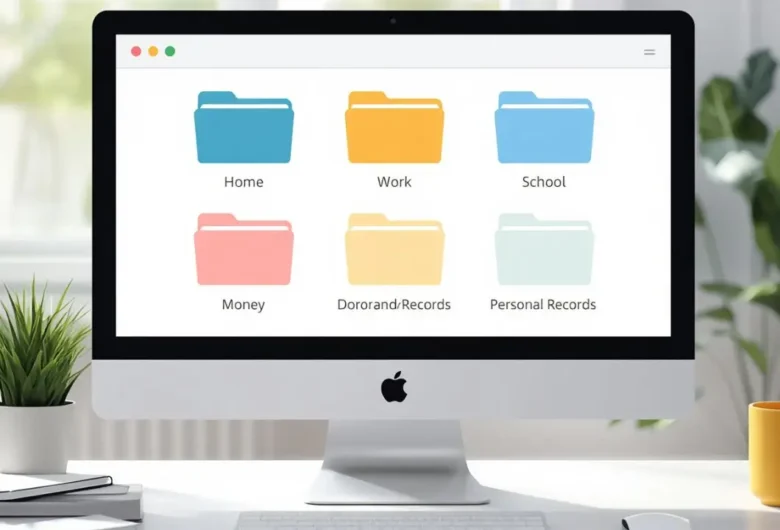
Create a folder called “Important Documents.”
Inside, use simple folders like:
Home, School, Work, Money, Health, and Personal Records.
Then make sure that main folder is included in cloud backup and external drive backup.
This matters because a clear folder structure makes backups easier to check.
You do not have to search all over your computer to know what matters.
A 3-2-1 Backup Plan for a Family Computer
A family computer often has files from several people.
A simple plan is to create one main folder for each person.
Example:
Mom Files
Dad Files
Alex School
Family Photos
Household Documents
Then include those folders in both cloud backup and external drive backup.
This matters because shared computers can become messy quickly.
Simple folders make it easier to know what is protected.
You can also teach each person where to save important files.
What If You Cannot Do the Full 3-2-1 Rule Yet?
Start with one improvement.
You do not need to do everything at once.
If you currently have no backup, turn on cloud backup first.
If you already use cloud backup, add an external drive.
If you already use an external drive, check whether one copy is stored away from your computer.
Progress matters.
A simple backup you use today is better than a perfect system you keep postponing.
Common 3-2-1 Backup Mistakes
Mistake 1: Backing Up Only Some Files Without Knowing It
This happens often with cloud tools.
You may think your whole computer is backed up, but only one folder is included.
Open your backup settings and check what is selected.
This matters because the missing folder is often the one you need later.
Mistake 2: Keeping the Backup Drive Plugged In Forever
A constantly connected drive is convenient, but less protected.
If files are deleted or changed by mistake, the connected backup may be affected too.
Plug it in for backup time, then unplug it.
This keeps the backup more separate.
Mistake 3: Not Knowing the Password to the Cloud Account
Cloud backup is only useful if you can access it.
Use a password manager or another safe method to keep your account details available.
Also keep recovery information up to date.
This matters because losing access to the account can feel like losing access to the backup.
Mistake 4: Never Checking the Backup
Do not wait for an emergency to learn whether your backup works.
Every few months, open a few files from each backup location.
This small habit gives you confidence.
Mistake 5: Making the System Too Complicated
A complicated backup plan often gets ignored.
Start with a simple system:
Cloud backup runs automatically.
External drive backup happens monthly.
Important files live in a few clear folders.
That is enough for many households.
A Calm Way to Start Today
Here is a simple first step.
Choose one folder.
Maybe it is your photos.
Maybe it is your school work.
Maybe it is your important documents.
Back up that folder to one cloud service and one external drive.
Then choose a monthly reminder to check it.
You do not have to fix your whole digital life in one afternoon.
You just need to make your most important files harder to lose.
That is what the 3-2-1 backup rule is really for.
Checklist: Simple 3-2-1 Backup Setup
- Choose the files you would be most upset to lose.
- Put important files into clear folders.
- Turn on cloud backup for photos and key documents.
- Confirm the files appear in the cloud app or website.
- Get an external hard drive with enough storage.
- Use backup software when possible.
- Run an external drive backup weekly or monthly.
- Unplug the external drive after backing up.
- Keep one copy away from your main device.
- Use a strong password for your cloud account.
- Turn on two-factor authentication.
- Test a few backed-up files every few months.
- Keep the backup routine simple enough to repeat.
FAQ
What is the 3-2-1 backup rule?
The 3-2-1 backup rule means keeping three copies of important files, using two different types of storage, with one copy stored somewhere separate from your main device.
Is the 3-2-1 backup rule good for beginners?
Yes. It is useful for beginners because it gives a simple structure. You do not have to understand advanced technology. You just need more than one copy in more than one place.
What is an easy example of the 3-2-1 backup rule?
An easy example is keeping your original files on your computer, backing them up to an external hard drive, and also backing them up to cloud storage.
Does cloud storage count as a backup?
It can, but it depends on how it works. If your cloud service keeps deleted files or file history, it may work well as part of your backup plan. If it only syncs changes, a mistake may sync everywhere.
Do I need both cloud backup and an external hard drive?
Using both is a strong simple setup. Cloud backup gives you an off-site copy, while an external hard drive gives you a local copy that can be restored quickly.
How often should I back up my files?
Cloud backup can run automatically every day. External drive backups can be weekly or monthly, depending on how often your files change. Important work files should be backed up more often.
What should I back up first?
Start with files that are hard or impossible to replace. This usually includes photos, videos, personal documents, school files, work files, financial records, and scanned papers.
Is one external hard drive enough?
One external hard drive is better than no backup, but it is not a complete 3-2-1 setup by itself. For better protection, add cloud backup or keep another copy in a separate location.
What if I cannot afford a full backup setup right now?
Start with the most important files and use a free or low-cost cloud option if it has enough space. Then add an external drive later. The goal is steady improvement, not perfection.